Mac file search
Find Text Inside Images and PDFs on Mac
Find words in Mac screenshots and scanned PDFs. Learn what Preview and Spotlight can do, when a scan needs OCR, and how to search across your file library.
You remember the Wi-Fi password in a screenshot, or the invoice number on a scanned receipt. You search the filename and get nowhere because the words you need are inside the picture, not in its name. On a Mac, Preview can read text in an image, Preview can search text in a PDF, and MacEx can index recognized words across images and PDFs in your file library.
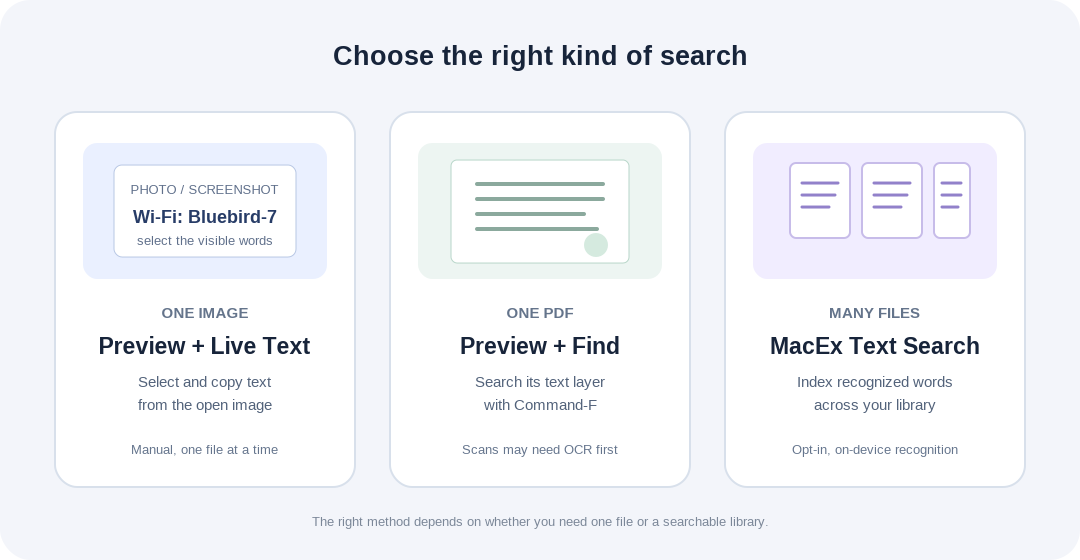
The quick take
- Use Preview and Live Text to select or copy words from one image.
- Use Preview’s Find field to search a PDF that contains searchable text; a scan made only of pixels may need OCR.
- For searches across many screenshots and PDFs, turn on MacEx Settings → Text Search. Recognition runs on your Mac and is off until enabled.
First, choose the job you actually need done
There are three different tasks that often get mixed together. You might want to copy a phone number from one screenshot. You might need to find a word inside one PDF. Or you might want to search a whole collection of receipts, screenshots and scanned documents for a phrase you remember.
Preview is excellent for the first two. Searching one file is not the same as making every image on your Mac searchable, though. For that third job, you need a tool that recognizes text and builds a searchable index. The difference matters because a screenshot can look full of words to you while the file itself contains no text that Finder or Spotlight can index.
Copy words from a screenshot with Preview
Find the image in Finder and open it in Preview. Move the pointer over the text. If macOS recognizes it, you can drag across the words, Control-click the selection and choose Copy Text. Paste the result into Notes, a message or a document.
If you cannot select the words, choose Tools → Text Selection in Preview and try again. Live Text is useful for a quick one-off job: copying a tracking number, a web address or a line from a photographed notice without typing it by hand.
Live Text availability depends on language and region, and recognition is not perfect. Small type, blur, glare, unusual fonts and low contrast can all make a word harder to read. Check copied numbers and passwords against the image before using them.
Search inside a PDF with Preview
Open the PDF in Preview and press Command-F, or click the search field in the toolbar. Enter a word or phrase. Preview highlights matches and lets you move between them. If you enter a phrase, it looks for that exact phrase; use the magnifying-glass menu and choose Any Match when you want any word from the phrase.
This works well for PDFs with a text layer, such as documents exported from Word or receipts generated by a website. You can select a line, copy it and search for it again later.
A scanned PDF is different. It may be a stack of page images with no embedded text. The words are visible on screen, but they are not necessarily stored as characters. If Preview's search finds nothing, try selecting a line of text in the page. If you cannot select or copy it, the PDF may need optical character recognition (OCR) before ordinary PDF search can find those words.
Why Finder and Spotlight can miss the words
Finder and Spotlight search filenames, metadata and content that has been made available to their index. A normal text PDF gives them actual words to work with. A screenshot or image-only scan may contain only pixels. Unless text has been recognized and made searchable, searching for a word printed in the image can return nothing even when the file is right there.
That is why changing the filename is not always the answer. Renaming Scan 004.pdf to receipt-june.pdf helps you find it by its new name, but it does not make the invoice number inside the page searchable.
If Spotlight is also missing ordinary documents or filenames, check its Search Privacy and indexing settings separately. That is a different problem from OCR: rebuilding the Spotlight index cannot invent a text layer that a scanned file does not contain.
Search across screenshots and scanned PDFs with MacEx
If you regularly need to find words inside a collection of images and PDFs, MacEx has an optional Text Search feature. Open MacEx Settings → Text Search and turn on Find words inside images and PDFs. MacEx uses Apple's on-device Vision framework to recognize text, then makes that recognized text available to its search.
Once recognition has run, you can search for a clue that appears only inside the file. For example, a search such as screenshots with wifi password can find a screenshot whose filename is just Screenshot 2026-11-02 at 9.14.22 AM. You can use the same idea for an invoice number, a product serial number or a phrase on a scanned receipt.
Text Search is off until you enable it. The first pass through a large library takes time, so do not judge it from the first few seconds. MacEx slows recognition on battery and in Low Power Mode. You can pause it, choose languages, exclude folders or clear the recognized text from the same settings page.
Recognition runs locally on your Mac. Your images and PDFs are not sent to a cloud OCR service. MacEx does have a defined library scope: it searches your standard personal folders, installed apps and up to eight folders you add, rather than every hidden system location on the disk. Online-only iCloud files are listed but are not downloaded just to read their text.
Make text recognition more reliable
Start with the clearest version of the file you have. A straight scan with dark text on a light background is easier to recognize than a photo taken at an angle. If you are scanning a paper document yourself, keep the page flat, avoid shadows and make sure the smallest text is in focus.
Choose the language used in the document in MacEx Text Search settings. If a page mixes languages, recognition may be less consistent. A blurry password or a tiny serial number deserves a manual check even when a result appears.
Do not treat OCR as a perfect transcript. It can confuse similar characters such as O and 0, I and 1, or drop punctuation. Use the search result to locate the file, then open it and verify the original text before you copy a code, pay an invoice or enter a serial number.
A quick example: find an old receipt
Imagine you need a receipt for a charger bought months ago. You do not remember the filename, and the PDF is called Scan 3.pdf. Open it in Preview first. If Command-F finds the shop name or invoice number, you can search that PDF directly.
If the page is just a scan, Preview may show the page without giving you searchable text. With MacEx Text Search enabled, let recognition process the PDF, then search for the shop name or a distinctive number. Open the matching file and confirm the details on the page.
For a single image, Preview is the quickest choice. For a growing library of screenshots and scans, searchable text saves you from opening each file just to discover what it contains. Keep both approaches: use Apple's built-in tools for quick reading, and use a local index when you need to find the same kind of information again and again.
Further reading
Related MacEx guides
- Find files on your Mac by describing them — how Text Search finds words inside images and PDFs
- Where Mac screenshots are saved — change the screenshot destination and keep the Desktop tidy