Mac file search
Why Downloads Don’t Show in Finder Recents on Mac
Downloaded a file but can’t see it in Finder Recents? Learn what Recents shows, how to sort Downloads by Date Added, and save a recent-files view on Mac.
You download a PDF, switch to Finder, click Recents, and it is nowhere to be seen. That does not necessarily mean the download failed. Finder’s Recents view is not a download history: it focuses on files you have recently used. To find something you just saved, open Downloads and sort by Date Added instead.
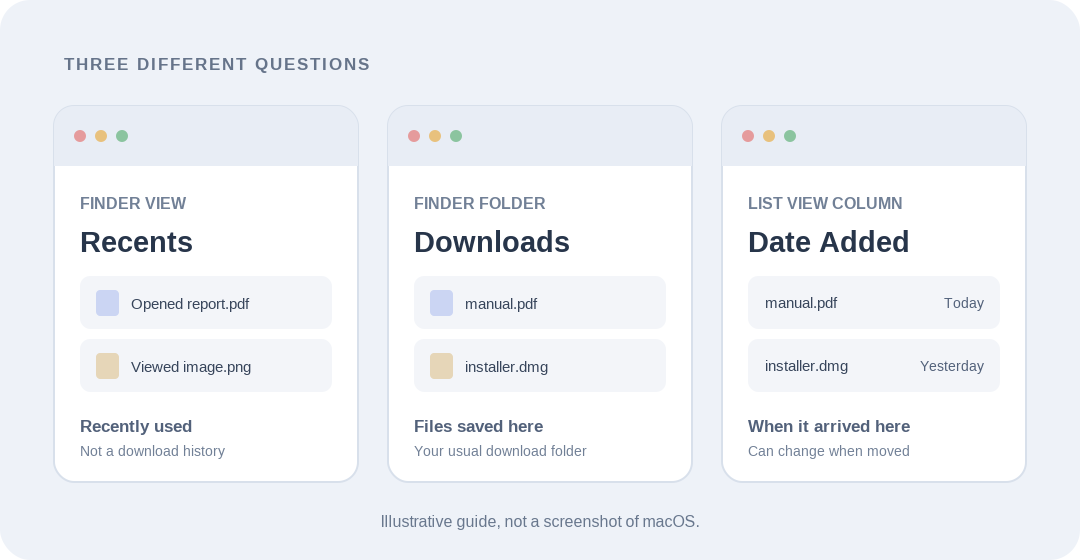
The quick take
- Finder Recents is a search-based view of recently used files, not a list of everything downloaded.
- Open Downloads in List view and sort by Date Added to see what arrived in that folder most recently.
- Date Added is not a permanent download timestamp: moving a file into another folder can change it.
Recents and Downloads answer different questions
Think of Recents as a shortcut back to work you have already opened. Downloads is a real folder where your browser or another app saves files. A PDF can arrive in Downloads a moment ago and still be absent from Recents because you have not opened it.
Apple’s own guidance for finding a file suggests using Finder’s Recents view and grouping the results by Date Last Opened. That is a useful clue to what the view is for: recent activity, not recent arrivals. It is not meant to replace the Downloads folder.
There is also an Apple menu called Recent Items. It is separate from Finder’s Recents sidebar item and can list recently used apps, documents and servers. Neither view is a reliable download log.
Find the download in its actual folder
Start with Finder’s Downloads folder. Open a Finder window and choose Go → Downloads, or press Option-Command-L. If Downloads is in the sidebar, you can click it there.
If the file is not there, check the browser or app that downloaded it. Safari and other browsers can save to a location you chose earlier, so the Downloads folder is not guaranteed to be the destination. Open the browser’s downloads list and use its Show in Finder or reveal option if available. That takes you to the actual file rather than making you guess which folder received it.
Also check whether the download finished. A partial file, a failed download, or a file that was opened directly from a browser may not be sitting in the folder you expected.
Sort Downloads by Date Added
Once you are in the right folder, switch Finder to List view with Command-2. If you can already see a Date Added column, click its heading to sort by it. Click again to reverse the order and put the newest items at the top.
If the column is missing, choose View → Show View Options or press Command-J. In the panel, enable Date Added under the list-view columns. You can also Control-click an existing column heading and select Date Added from the menu of available columns.
Now you can scan the newest arrivals without opening each file. This is especially handy when several downloads have similar names, or when you have saved a mix of PDFs, images and installers in one place.
What Date Added actually means
Date Added records when an item was added to the folder you are viewing. It is useful for answering “What arrived in Downloads recently?” but it is not always the original time the file was downloaded.
For example, if you move an old PDF from Documents into Downloads today, it can appear near the top by Date Added even though you downloaded it months ago. Move it to another folder and the value can change again. Treat the column as a folder-arrival clue, not an audit trail.
Other Finder dates answer different questions. Date Created describes the file’s creation date, Date Modified describes its last content change, and Date Last Opened describes when it was last opened. None of those is guaranteed to be the day a browser downloaded the file.
Save a view of recently added files
If you check recent arrivals often, make a Smart Folder so you do not have to rebuild the search each time. Open Downloads in Finder, choose File → New Smart Folder, and make sure the search scope is Downloads rather than This Mac.
Click the plus button to add a criterion. If Date Added is not in the menu, choose Other and find it in the list of search attributes. Set it to a recent range, such as within the last 7 days. Add a Kind condition if you only want documents or images. Check the results before saving, because a recent-arrivals search can include files moved into Downloads as well as fresh downloads.
Click Save, give the Smart Folder a name such as Recent Downloads, and leave Add To Sidebar selected if you want quick access. A Smart Folder stores the search, not another copy of the files. The originals stay where they are.
If Recents is empty or still looks wrong
If Finder’s Recents view is missing files you have definitely opened, check whether the folders containing those files are excluded from Spotlight. Also give Spotlight time to index a new drive or a large batch of files. Search Privacy and indexing problems are different from the normal behaviour of Recents.
If ordinary files are missing from Spotlight too, follow the checks in our guide to fixing Spotlight search on Mac before trying advanced Terminal commands. Do not rebuild the index just because a file you downloaded has not appeared in Recents; that is usually the wrong view for the job.
If the Downloads folder itself looks empty, confirm the browser’s download location and check its downloads list. A Finder search scoped to the wrong folder can also hide a file that is safely stored elsewhere.
A quicker way to search when you remember a clue
Sometimes you do not need a timeline at all. You remember that the file was a PDF, arrived last week, or came from a particular website. Finder can build a search from criteria such as kind and date, while MacEx lets you describe those clues in ordinary words, for example “pdfs from last week” or “downloads from gmail”. Its search can use source information when the downloading app saved it with the file.
MacEx searches the folders in its file library, including Downloads, rather than every hidden location on the disk. It is useful when you remember something about a file but not its name. For a simple one-off check, Finder’s Downloads folder and Date Added column are still the quickest place to start.
Further reading
Related MacEx guides
- Find files on your Mac by describing them — search by file type, date and saved download source
- Spotlight not finding files on Mac — troubleshoot missing results when files you have opened still do not appear