Mac storage
Can you delete DMG files on a Mac? When it is safe
A DMG is only the container an app came in. Once the app is in Applications you can usually delete it. Here is how to check, and when to keep one.
Open the Downloads folder on a Mac you have used for a year and you will probably find a pile of .dmg files, one for every app you ever installed. The short answer is that you can usually delete them once the app works. The exceptions take about a minute to check.
The quick take
- A DMG is a disk image: the container an app arrived in. After you install the app, the container is a leftover.
- Make sure the app is in Applications and launches before you delete the image. If you ran it from the mounted disk, copy it over first.
- Keep an installer only if you cannot download it again.
What a DMG file is
A .dmg file is a disk image. Double-click it and macOS mounts it as a virtual disk that appears in Finder, usually with the app inside and a prompt to drag it into the Applications folder. Apple’s instructions for apps downloaded from the internet say to open the Downloads folder, double-click the disk image or package file, and follow the onscreen instructions.
Once the app has been copied into Applications, the image has done its job.
Check the app before you delete the image
Open the Applications folder and confirm the app is there. Launch it once to be sure it works. If you have been running the app directly from the mounted disk, drag it into Applications first. Otherwise it will disappear when you eject the disk.
Then eject the mounted disk, using the eject button beside it in the Finder sidebar, so that nothing is still using the file. After that you can move the .dmg to the Trash.
PKG installers work the same way
A .pkg file is an installer package. It runs an installer that places the app’s files in several locations, and you do not need the package to run the app afterwards. macOS keeps its own receipts of installed packages in a system folder, so deleting the .pkg from Downloads does not remove that record.
When to keep an installer
Keep an installer if you cannot download it again: the developer has stopped distributing the app, the download needs an account you no longer have, or you need an older version that works on an older macOS. Keep it also if it came with a licence you cannot recover. Everything else, including installers for apps that update themselves, can go.
Moving a file to the Trash does not free the space. Apple’s storage guide notes that trashed files only free space once you empty the Trash, so check what is in there first.
Find the DMGs you forgot
In Finder, open Downloads and press Command-F. Set the first criterion to Name, choose ends with, and type .dmg. Sort the results by Size to see the heavy ones first.
In Terminal, mdfind -onlyin ~/Downloads "kMDItemFSName == '*.dmg'" prints every disk image in Downloads. Replace ~/Downloads with ~ to search your whole home folder, and run it again with '*.pkg' for installer packages.
Let MacEx list them for you
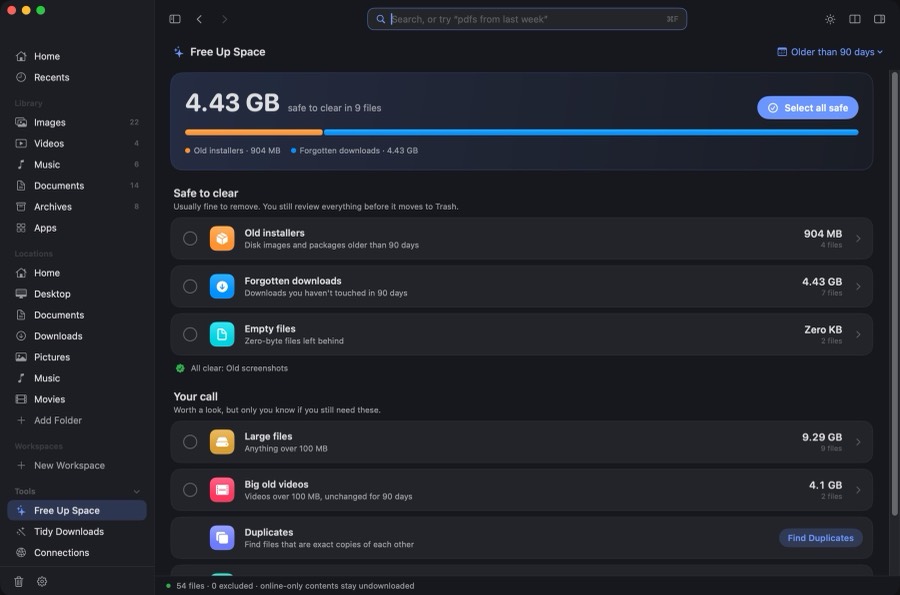
In MacEx, Free Up Space has an Old installers group. It lists .dmg and .pkg files older than the age you choose (the Older than menu offers 30, 60, 90, 180 and 365 days, and 90 is the default). Nothing is ticked for you: you open the group, tick what you want gone, review the list, and only then does it move to the Trash.
MacEx keeps a history of the last 500 files it moved, so you can put one back. An optional rule in Settings can move old .dmg and .pkg files to the Trash on a schedule, but it is off until you turn it on, and it only watches folders you added yourself.
Further reading
Related MacEx guides
- Free up storage on your Mac — every Free Up Space group and its exact rule
- Clean up your Downloads folder — sort Downloads by where files came from