 MacEx
Free up storage on your Mac without deleting the wrong thing
Updated
Start with what macOS already shows
macOS has its own overview in System Settings › General › Storage (Apple’s guide to freeing up storage). It breaks usage into categories such as Applications, Documents and Photos, and offers recommendations like storing files in iCloud or emptying Trash automatically. If one category is clearly the problem, such as a Photos library or old iPhone backups, deal with it there first.
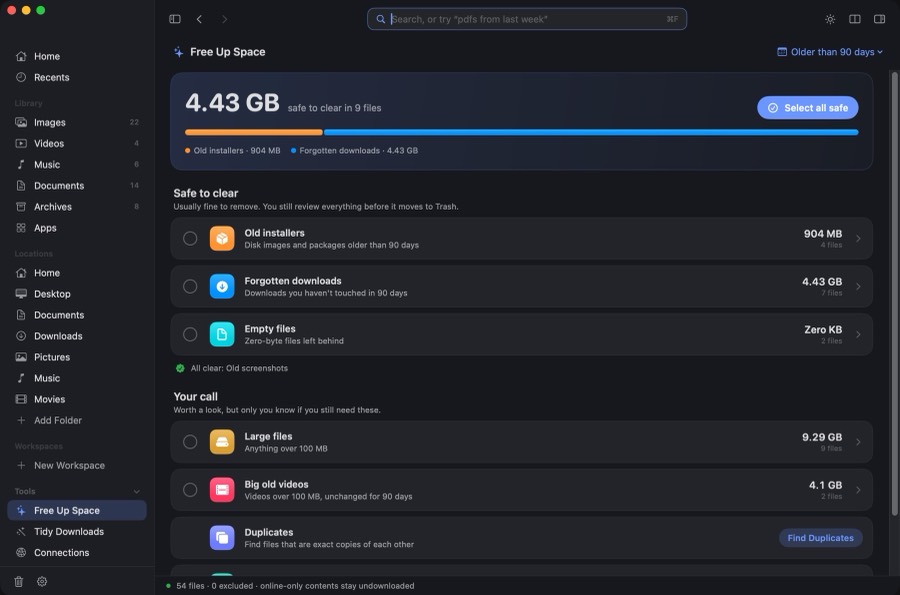
Where that view gets harder is the everyday clutter spread across folders: installers you ran once, downloads you never opened again, screen recordings and exported videos, and copies of the same file in three places. That is what MacEx Free Up Space is for.
What Free Up Space looks for
Each group has a plain rule, so you can tell why a file is listed. “Old” is 90 days unless you change it with the Older than menu at the top right (30, 60, 90, 180 or 365 days).
| Group | What it lists | How to judge it |
|---|---|---|
| Old installers | Safe to clearDisk images and packages (.dmg, .pkg) older than your chosen age. | Usually leftovers once the app is installed. Keep any installer you can’t download again. |
| Forgotten downloads | Safe to clearDownloads you haven’t touched in that time. | Check for receipts, tickets or documents you meant to file. |
| Old screenshots | Safe to clearScreenshots older than your chosen age. | Look for ones that hold a password, code or receipt. |
| Empty files | Safe to clearZero-byte files left behind. | They hold no data, so they free no space, but they clutter folders. |
| Large files | Your callAnything over 100 MB. | Often the fastest win. Many are recordings or exports you still need. |
| Big old videos | Your callVideos over 100 MB, unchanged for your chosen age. | Make sure a copy lives elsewhere before you clear originals. |
| Duplicates | Your callExact copies, confirmed byte for byte. | MacEx suggests a copy to keep. See how to find duplicate files. |
| Similar photos | Your callBursts and near-identical shots, grouped separately. | They look alike but aren’t identical, so pick the best one yourself. |
| Unused apps | Your callApps you haven’t opened in your chosen time, when macOS records when they were last used. | Apps without usage information aren’t guessed at. |
“Safe to clear” is a suggestion based on age and type, not a promise. It is still worth a look before you clear.
How cleanup stays reversible
- Click a row to see every file inside it.
- Tick what you want gone. Nothing is ticked for you, and Select all safe only selects the Safe to clear groups.
- Review the list, then move it to Trash.
MacEx never deletes a file for good. Files sit in the normal Trash until you empty it, and MacEx keeps a history of the last 500 files it moved there, with their original folders. Click the Trash icon in the MacEx sidebar to put any of them back. Restoring never replaces a file that is already there. Once you empty the Trash, those files can’t be restored.
Why the space you get back can differ
- Trash still counts. Space comes back when you empty the Trash, not when files move into it.
- APFS shares data. Copies made in Finder can be clones that share storage, and Time Machine local snapshots can hold on to deleted files for a while. Removing a clone may free less than its listed size.
- Compression and hard links also make a file’s listed size differ from the disk space it uses.
What it doesn’t touch
- System and app data. MacEx works with your own files and apps. It doesn’t clear caches, logs or anything inside
~/Library, and hidden files are left out on purpose. - Online-only iCloud files. They are never downloaded, so they’re never hashed or offered for cleanup.
- Folders macOS hasn’t allowed. MacEx runs as you and can’t read a folder you haven’t given it access to.
Keep it tidy automatically (optional)
Automation rules are off until you turn them on in Settings › Automation, and they only work in folders you added yourself with Add Folder. One rule moves .dmg and .pkg files to Trash after the number of days you set; another files screenshots into a folder for each month. Rules check every 30 minutes while MacEx is open and never delete a file for good.
Related
MacEx runs on macOS 14 or later, Apple silicon and Intel. One-time purchase, no account, no subscription.