 MacEx
How to find duplicate files on Mac, safely
Updated
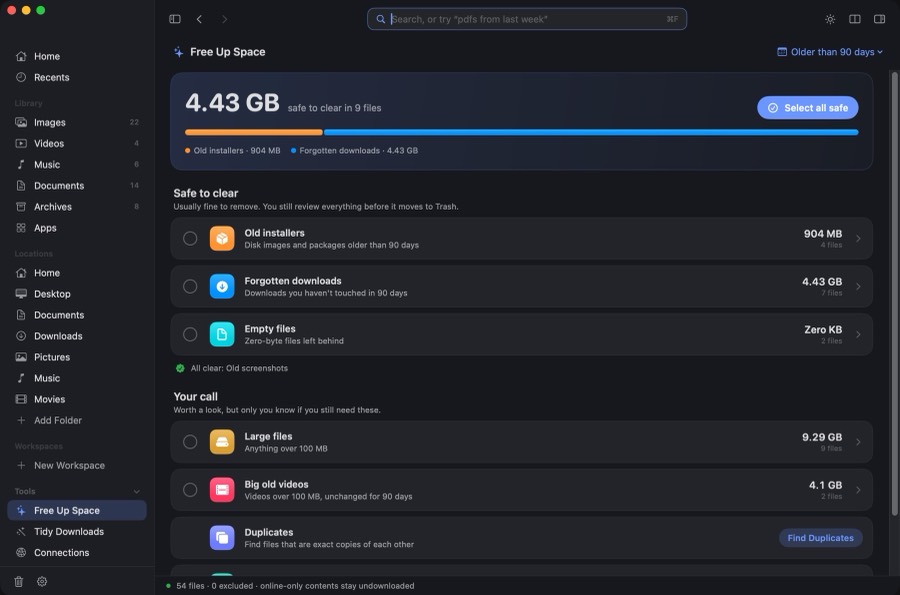
Short answer: Finder cannot find duplicate files on its own. In MacEx, press ⇧⌘D or click Find Duplicates in Free Up Space. MacEx compares files byte for byte, suggests which copy to keep, and moves only the files you select to Trash, where you can restore them.
How do I find duplicate files on my Mac?
- Open MacEx and press ⇧⌘D, or click Find Duplicates in Free Up Space.
- Wait for the scan. MacEx groups exact copies together.
- Review each group. MacEx suggests which copy to keep, and you choose what goes to Trash.
- Move the selected files to Trash. Nothing is deleted for good.
How does MacEx know two files are the same?
MacEx compares the files byte for byte before it calls them duplicates. A matching name or size is not enough: files of the same size are checked with a SHA-256 fingerprint and then a final byte comparison. Exact copies are listed as Duplicates. Hard links, which are two names for the same data, are shown for review only, because removing one frees no space.
What are similar photos?
Bursts and near-identical shots look alike but are not identical files. MacEx groups them separately as Similar photos, so you judge each group yourself.
Is it safe to delete duplicates?
- You review every file before it moves.
- Only files you select move, and they go to the normal Trash.
- MacEx keeps a history of the last 500 files it moved to Trash, with their original folders, so you can restore them.
Can Finder find duplicate files?
No. Finder has no duplicate finder. The built-in options are partial:
- Photos: on macOS Ventura or later, the Duplicates album in the Photos sidebar finds copies inside your Photos library only (how Apple describes it). It doesn’t look at photos in Finder folders.
- Finder list view: sort a folder by name or size to spot names like
report copy.pdforreport (1).pdf. This only finds copies in one folder, and it can’t tell whether two files really match.
See the full MacEx vs Finder comparison.
Related
MacEx runs on macOS 14 or later, Apple silicon and Intel. One-time purchase, no account.