Mac storage
Is Your iCloud Drive File Actually on Your Mac?
A file can appear in Finder without being stored locally. Check iCloud Drive status and use Download Now, Keep Downloaded and Remove Download safely first.
A file can appear in Finder even when its contents are not stored on your Mac. In iCloud Drive, the status tells you what is really available: “In iCloud” means online-only, while “Downloaded” means you can open it without an internet connection. Here is how to check, keep important files offline and free local space without deleting the cloud copy.
The quick take
- A filename in iCloud Drive does not guarantee that the full file is stored on your Mac.
- Use Finder’s iCloud Status column to distinguish online-only files, downloaded files and items still syncing.
- Remove Download frees the local copy; Delete removes the item from iCloud Drive and your other synced devices.
Check iCloud Drive status in Finder
Open Finder and select iCloud Drive in the sidebar. Switch to List view with Command-2, then choose View → Show View Options or press Command-J. Turn on the iCloud Status column. You can widen the column if the status text is cut off.
Finder can also show status symbols beside filenames. Apple notes that downloaded items do not need a separate status icon, so do not assume that a missing cloud symbol means something is wrong. The status column is the clearest place to check when it is available.
This is useful for files in iCloud Drive, including Desktop and Documents if you have enabled Desktop & Documents Folders in iCloud settings. It does not tell you whether an ordinary file elsewhere on your Mac has been backed up.
What the different statuses mean
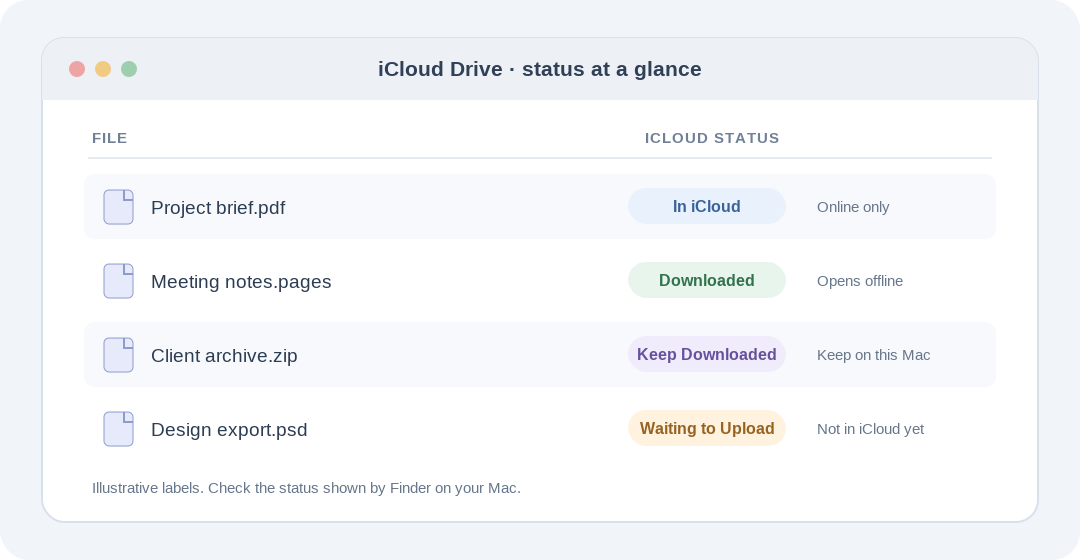
“In iCloud” means the item is stored in iCloud and has not been downloaded to this Mac. You need an internet connection to open it. Control-click the item and choose Download Now to fetch a local copy.
“Downloaded” means the file is up to date with iCloud and available on your Mac, including when you are offline. You can open it normally.
“Keep Downloaded” means macOS should retain a local copy even when it needs to make room. This is useful for a current project, travel documents or reference files you need without reliable Wi-Fi.
“Waiting to Upload” means the item has not finished syncing to iCloud. Keep the local file in place and let the upload complete before assuming another device can access it.
“Out of Space” means iCloud does not have enough storage for the item. This is a cloud-storage problem, not proof that your Mac’s internal drive is full. “Ineligible” means the item cannot be stored in iCloud Drive, commonly because an individual file or folder exceeds Apple’s 50 GB limit. A transfer progress indicator means the file is still moving; give it time before changing or deleting it.
Download Now or Keep Downloaded?
These two commands sound similar, but they solve different problems. Download Now gets the file onto your Mac now. Once it finishes, you can open it without an internet connection. It does not tell macOS that the file must stay local forever.
Keep Downloaded is the better choice for files you rely on regularly. In Finder, Control-click the file or folder and choose Keep Downloaded. Finder shows a status mark for items that are pinned locally. To stop keeping an item downloaded, Control-click it again and choose Keep Downloaded to clear the setting.
If you are preparing for a flight, a client presentation or a trip with unreliable internet, use Download Now for items you need once and Keep Downloaded for files you want macOS to retain. Allow enough free space for the full files, especially large video or design projects.
Remove Download is not the same as Delete
This is the distinction that prevents accidental data loss. If a file is already downloaded, Control-click it and choose Remove Download to remove the local copy from your Mac while leaving the file in iCloud Drive. The filename remains visible in Finder, and you can download it again later.
Delete does something different. Moving a file from iCloud Drive to the Trash deletes it from iCloud Drive and removes it from the other devices using the same Apple Account. Apple says iCloud Drive items in the Trash are kept for up to 30 days before they are permanently removed, but do not treat that recovery window as a backup.
If your goal is to make room on the Mac while keeping the document in iCloud, choose Remove Download. If your goal is to remove the document from iCloud everywhere, choose Delete only after checking that you have another copy if you need one.
Why macOS may remove a local copy
If Optimise Mac Storage is enabled, macOS can keep older documents in iCloud and remove local copies when more space is needed. The file remains part of iCloud Drive, so it can be downloaded again when you open it. This is why a file you opened last month may no longer be available offline today.
You can review the setting in System Settings → your name → iCloud → Drive (or iCloud Drive). Check that Sync this Mac is on, and review Optimise Mac Storage. The exact labels can vary slightly with macOS releases.
Turning off optimisation is not a magic way to create more disk space. Keeping more iCloud files locally can use more of your Mac’s storage. If the disk is already close to full, pin only the files and folders you genuinely need offline.
Make sure an important file is ready before you go offline
Open iCloud Drive while you still have a reliable connection. Turn on the iCloud Status column, find the files you need, and choose Download Now or Keep Downloaded. Wait until the transfer finishes and the item is shown as downloaded. Then open the file once to confirm it works.
For a folder, check the files inside it too. A folder name appearing in Finder does not mean every large item inside has finished downloading. Give nested folders and large files time to sync, and keep enough free disk space for them.
If an item stays on Waiting to Upload, check your internet connection and available iCloud storage. If it says Out of Space, manage your iCloud storage or upgrade the plan before expecting the upload to finish. Do not delete the only local copy to try to fix a stalled upload.
A safer way to free up space
Start by deciding whether the file belongs in iCloud or only on this Mac. For an iCloud Drive file you want to keep in the cloud, use Remove Download. For a local download or export you no longer need, review it first and then move it to the Trash. Those are different cleanup jobs.
MacEx Free Up Space can help you review ordinary large files, old installers and downloads on your Mac before anything moves to the Trash. It is not a replacement for Finder’s iCloud status controls: use Remove Download for an iCloud file you want to keep online.
One last habit is worth keeping: iCloud Drive synchronises changes; it is not an independent backup. For important work, keep a separate backup as well. That way, an accidental deletion or unwanted change is not copied to every device you own.
Further reading
Related MacEx guides
- Free up storage on Mac safely — Review local files and downloads without confusing cleanup with cloud deletion.
- System Data vs Purgeable Space on Mac — Understand why macOS storage figures can differ.