Mac storage
System Data vs Purgeable Space on Mac
System Data and purgeable space are not the same. Learn why Storage and Disk Utility show different Mac space totals, and what to do safely on your Mac.
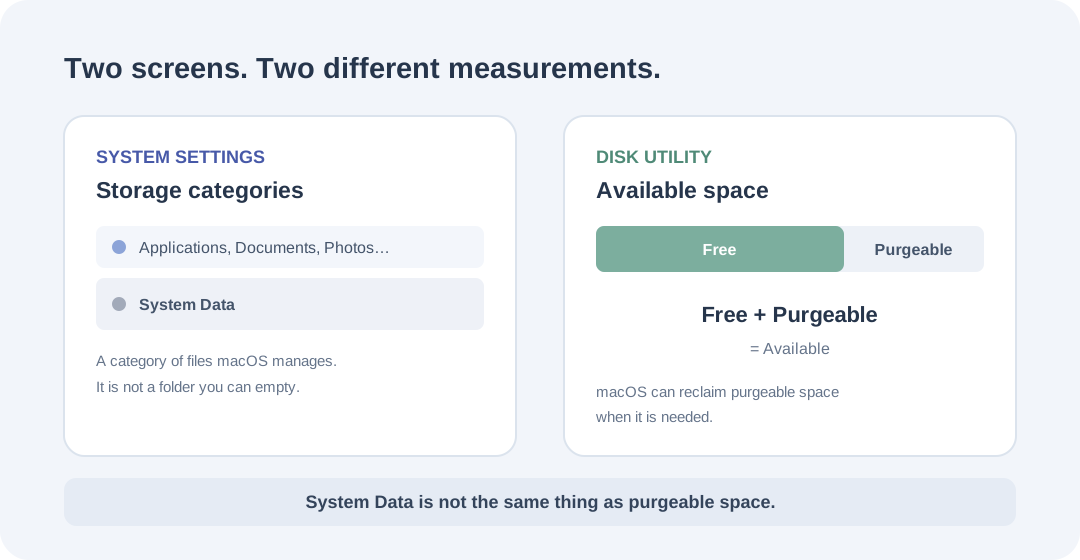
Your Mac says System Data is taking up space, but Disk Utility reports a much larger amount as available. It looks like the numbers disagree. Usually, they are answering different questions: System Data is a category of files, while purgeable space is storage macOS can reclaim when it needs room.
The quick take
- System Data is a broad category managed by macOS, not a folder you can safely empty.
- Available space can include both physically free space and purgeable space.
- Time Machine local snapshots are counted as available and are removed automatically as they age or when space is needed.
Why the two numbers look different
Open Apple menu → System Settings → General → Storage and you get a category breakdown: Applications, Documents, Photos, System Data and more. Open Disk Utility, select a disk or volume, and its Info panel can show capacity, free space, available space and purgeable space.
Those screens are not measuring the same thing. System Data describes what macOS has grouped into one storage category. Disk Utility describes space on the selected device, container or volume. The first is a classification of data; the second is a view of capacity and how much of it can be used.
That is why a large System Data figure does not automatically mean the same amount of storage is permanently occupied, and why the Available figure can be higher than the Free figure. Neither screen is necessarily wrong.
What System Data actually includes
Apple describes System Data as files that do not fit into the other storage categories. It can include system logs, caches, virtual-memory files, other runtime resources, temporary files, fonts, app support files and plug-ins. Its size changes with the current state of your Mac.
The important detail is that Apple says you cannot manage the contents of the System Data category directly. macOS manages it. It is not a single folder called System Data, and it is not a list of files that are all safe to remove.
Some items in this category belong to applications you installed. If an app has grown unusually large, use that app's own settings or uninstall instructions to manage its data. Do not start deleting unfamiliar folders from Library, System or hidden locations just because the System Data bar looks big.
What purgeable space means
Free space is physically open space on a disk. Purgeable space is space macOS can make available when it is needed by removing items it considers safe to reclaim. Disk Utility's Available figure can include both.
Imagine Disk Utility reports 40 GB of free space and 25 GB of purgeable space. Its available figure may therefore be 65 GB. Those are example numbers, but the distinction is real: the 25 GB is not another permanent block of files you need to hunt down and delete yourself.
Do not treat purgeable as a separate cleanup target. Apple says you cannot manually remove the files designated as purgeable through Disk Utility; macOS removes them as space is required. If you are trying to install an update or copy a large file, the system can reclaim eligible space as part of making room.
Time Machine snapshots can count as available space
One source of confusion is Time Machine's local snapshots. When your backup disk is not connected, Time Machine can keep snapshots on your Mac so you can restore earlier versions of files. Apple says it saves a snapshot approximately every hour and keeps it for 24 hours, plus the last successful backup snapshot until space is needed. It also creates a snapshot before installing a macOS update on supported versions.
Apple counts the space used by local snapshots as available storage. Time Machine removes snapshots as they age or when the disk needs room. So a snapshot can appear to occupy space in one view while still being counted as available in another.
You generally do not need to delete these snapshots just to make the number look smaller. Keep your normal Time Machine backups enabled. If you are short on room, let macOS manage the snapshots and focus first on personal files you can identify and review.
APFS volumes share space
Modern Macs commonly use Apple File System (APFS). An APFS container can hold multiple volumes, and those volumes share the container's available space rather than each having a completely separate fixed pool by default.
This matters when you inspect storage in Disk Utility. The number for an individual volume is not always the same as the number for the whole container or physical device. Choose the item you mean to inspect, then compare like with like. In Disk Utility, choose View → Show All Devices to reveal the device, container and volume hierarchy before selecting one and clicking Info.
If you compare the startup volume in one screen with the whole APFS container in another, the totals can look inconsistent even though both are describing their selected scope correctly.
What to do when your Mac is genuinely low on space
Start with files you recognize. In System Settings → General → Storage, open categories that offer an Info button and review the contents. In Finder, check Downloads, old exports, screen recordings and large project files. Move only what you no longer need to the Trash, then review it before emptying it. Files in the Trash still take up space until the Trash is emptied.
If you need a broader view, MacEx Free Up Space can surface old installers, forgotten downloads, large files and duplicates for you to inspect. It is designed around reviewing the files before choosing what moves to Trash. It does not remove macOS-managed System Data or manually purge APFS snapshots, and it should not be used to delete hidden system files.
After you have removed or moved files you recognize, check Storage again. The aim is to make enough usable room for your work, not to force every category or purgeable figure down to zero.
Three questions worth asking before you clean
Is the space actually unavailable? If Disk Utility shows a meaningful amount of purgeable space, macOS may already be able to reclaim it when needed. Do not assume every byte labelled purgeable needs manual attention.
Are you looking at the same APFS scope? Compare the same volume or container, not a volume in one view and the whole device in another.
Can you identify the files? If you cannot tell what an item does, do not delete it to make a chart look tidier. Use the app that created it, Apple's storage guidance, or a proper backup before making changes.
Further reading
Related MacEx guides
- Free up storage on your Mac safely — Review installers, downloads, large files and duplicates without guessing
- Find large files on your Mac — A practical way to locate personal files that may be using space